
Cricut vs Silhouette for Stickers
Both machines print-and-cut. They differ on how big the sheet can be, how the machine finds your printed design, and what the software costs you.
Heads up: Mat & Blade earns a commission from qualifying purchases made through the links on this page, at no extra cost to you. It never changes which products we recommend or how we rank them. Read the full disclosure.
For most people making sticker sheets, Cricut is the easier machine and Silhouette is the more controllable one. Cricut's Print Then Cut scans a printed border and needs no setup ritual, which makes it the shortest path from a printed sheet to cut stickers. Silhouette prints registration marks in the sheet corners and gives you more adjustment when a read fails, and Silhouette Studio runs locally so an internet outage does not stop you. The real deciders are how big your sheets are, whether you want to pay for SVG support, and whether cloud software is acceptable.
What a sticker machine actually has to do
Cutting a solid-color vinyl decal is easy: the machine cuts a shape and there is nothing to line up. A printed sticker is harder, because the machine has to find a design that a completely separate device — your printer — put on the page, and then cut around it accurately enough that no white edge shows on one side and no artwork is clipped on the other.
Every meaningful difference between these brands for sticker work comes out of how they solve that alignment problem, and how much printable area the solution leaves you.
Registration: a scanned border versus printed marks
How Cricut does it
Design Space prints a rectangular registration border around your design. The machine's sensor scans that border and works out where the sheet is. It is one step, it needs no calibration, and when it works it is genuinely effortless. When it fails, the usual causes are poor lighting, a glossy or reflective stock, or a design that sits too close to the border.
The cost of the approach is printable area. Because the border needs room, the usable design space on a letter-size sheet is smaller than the sheet — Cricut documents a maximum design of roughly 9.94 by 7.44 inches on 8.5 by 11 inch stock, and square designs with hard corners have to be smaller still to stay clear of the border tolerance. Larger stock is supported on machines and printers that can handle it, including legal and tabloid sizes, but the size question is one you have to plan around rather than ignore.
How Silhouette does it
Silhouette Studio prints discrete registration marks — the long-standing system places three, in the top two corners and the bottom left — and the machine's optical sensor finds each one in turn. More recent hardware has moved toward a four-point system that adds correction in both directions, so check which system the specific machine you are buying uses.
The practical difference is control. Because the marks are discrete and the workflow exposes them, a failed read is diagnosable: you can move the marks, change their size, adjust the sheet position, or re-run the detection. Cricut's scanned border is more of a black box — it either reads or it does not. Neither is better in the abstract; one asks less of you and the other gives you more to work with.
The comparison, side by side
| Cricut (Explore 5 / Maker 5) | Silhouette (CAMEO 5 / Portrait 4) | |
|---|---|---|
| Print-and-cut name | Print Then Cut | Print & Cut |
| How alignment works | Machine scans a printed rectangular border | Machine finds discrete printed registration marks |
| Printable area | Capped below the full sheet to leave room for the border; larger stock supported where the printer allows | Marks sit in the corners; usable area depends on mark placement and cut width |
| Max cut width | 12 in material, 11.5 in cut | 12 in on CAMEO 5, 8 in on Portrait 4 |
| Software | Design Space — cloud, needs a connection | Silhouette Studio — installs locally, cuts offline |
| SVG files | Supported with no extra purchase | Gated behind a paid Studio upgrade on the basic edition |
| Learning curve | Gentler; very large beginner tutorial library | Steeper; more capable once learned |
| When a read fails | Retry, improve lighting, shrink the design | Adjustable marks and position; more levers to pull |
Our picks in full
1. Best for the simplest route to a sticker sheet
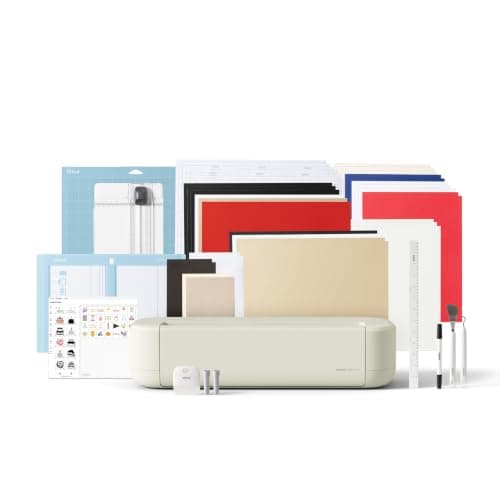
Cricut Explore 5
Cricut · Currently sold · Verified 2026-09-27
The machine most sticker makers should start on, because Print Then Cut in Design Space is the least fiddly implementation of the feature. You print your sheet on a home printer, drop it on the mat, and the machine scans the registration border and cuts. There is no separate calibration ritual and no software tier to buy before SVG files work. The limits are real: Cricut caps the printable area, it needs decent light to scan reliably, and Design Space requires an internet connection. For sheets of die-cut stickers at normal sizes, none of that gets in the way.
What works
- Cuts every material a beginner's first ten projects will use
- Matless Smart Material cutting means long banners and decals without a mat
- Cheapest current machine that still handles full 12 in wide vinyl
- Huge community of tutorials aimed at exactly this machine
What does not
- No rotary blade, so unbacked fabric is out
- No knife blade for basswood or thick leather
- Still needs Design Space, which needs an internet connection to set up
Not for you if
You already know you want to cut quilting fabric or thick leather. That is the Maker line's rotary and knife blades, and no accessory adds them to an Explore.
Key specs
- Cuts
- Vinyl, heat transfer vinyl, cardstock, paper, iron-on, faux leather
- Max material width
- 12 in (11.5 in cut width)
- Matless cutting
- Yes, with Smart Materials
- Tool slots
- Two — blade plus pen or scoring tool
- Rotary / knife blade
- No — Maker line only
Price as of November 12, 2026
#ad · affiliate link · we never show a price we cannot verify
2. Best for owning your files and working offline
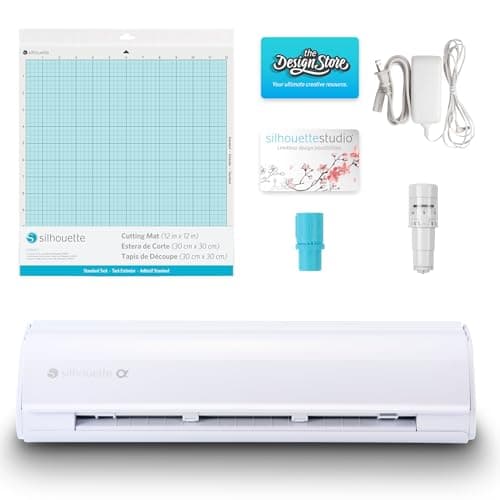
Silhouette CAMEO 5
Silhouette · Currently sold · Verified 2026-09-27
The alternative worth taking seriously, and the better machine if cloud software bothers you. Silhouette Studio installs locally and cuts without an internet connection, which means an outage does not stop your production run. Its print-and-cut uses printed registration marks in the corners of the sheet rather than a scanned border, and the system is adjustable in ways Cricut's is not when a scan goes wrong. The costs: Studio is harder to learn than Design Space, SVG import is gated behind a paid Studio upgrade on the basic edition, and the beginner tutorial ecosystem is much smaller.
What works
- Silhouette Studio runs on your computer and does not need to be online to cut
- No subscription is required to use the machine
- Cuts the same everyday materials a beginner uses
- Strong choice if you already own or buy SVG files from third parties
What does not
- Studio is more capable but noticeably harder to learn than Design Space
- SVG import is gated behind a paid Studio upgrade on the basic edition
- Smaller tutorial ecosystem than Cricut for absolute beginners
Not for you if
You want the shortest possible path from unboxing to a finished shirt. Design Space is the friendlier first app, even with its downsides.
Key specs
- Cuts
- Vinyl, heat transfer vinyl, cardstock, paper, fabric with backing
- Max cut width
- 12 in
- Software
- Silhouette Studio — installs locally, works offline
- File handling
- Imports SVG in the paid Studio tiers; basic edition is more limited
- Tool system
- Dual carriage with auto tool detection
Price as of November 12, 2026
#ad · affiliate link · we never show a price we cannot verify
3. Best for stickers plus everything else
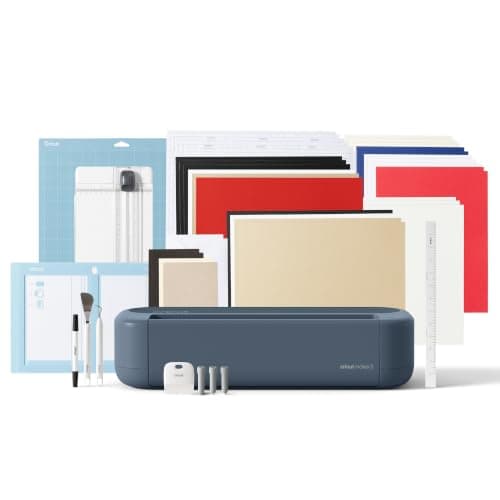
Cricut Maker 5
Cricut · Currently sold · Verified 2026-09-27
Only relevant if stickers are one of several things you plan to make. For sticker work specifically the Maker cuts exactly the same as an Explore — same blade, same print-then-cut, same material — so the extra money buys you rotary-blade fabric, basswood and thick leather, not better stickers. We list it so nobody upgrades for a reason that does not exist. If your list is stickers, decals and shirts, the Explore 5 does all of it identically.
What works
- Rotary blade cuts quilting cotton with no backing, which no Explore can do
- Knife blade opens basswood, chipboard and thick leather
- Adaptive tool system takes every Cricut blade and tip
- Same matless Smart Material workflow as the Explore line
What does not
- Materially more expensive than an Explore for capability most beginners never use
- The knife blade is a separate purchase on top of the machine
- Knife-blade cuts are slow — a thick basswood cut can run well over an hour
Not for you if
Your project list is shirts, decals, stickers and cards. Every one of those cuts identically on an Explore 5, and the difference in price is roughly a full starter set of materials.
Key specs
- Cuts
- 300+ materials including unbacked fabric, leather, basswood
- Max material width
- 12 in (11.5 in cut width)
- Matless cutting
- Yes, with Smart Materials
- Rotary blade
- Yes — cuts fabric without a stabilizer backing
- Knife blade
- Yes — sold separately
Price as of November 12, 2026
#ad · affiliate link · we never show a price we cannot verify
4. Best for the material that decides whether stickers survive
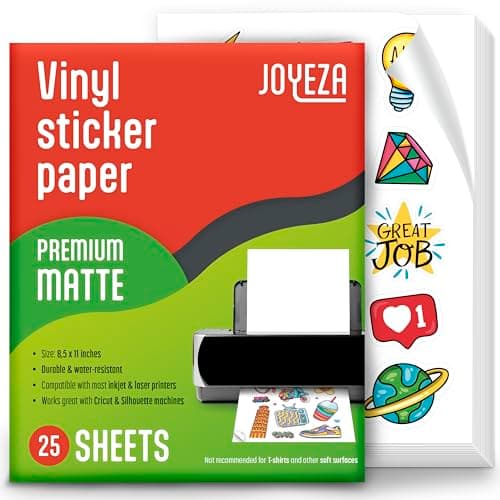
JOYEZA Printable Vinyl Sticker Paper
JOYEZA · Currently sold · Verified 2026-09-27
The purchase that matters more than the machine choice. Ordinary inkjet sticker paper runs the moment it gets damp, which is fine for a planner and useless for a water bottle. Printable vinyl with a waterproof coating survives handling, and sealing with a laminate sheet survives more. This is also the material print-and-cut is most sensitive to: a glossy surface can reflect enough light to confuse either brand's registration scan, so matte stock is the safer choice when a sheet keeps failing to read.
What works
- The only way to make full-color stickers on a craft machine
- Waterproof printable vinyl holds up to real use
- Cheap per sheet once you gang designs up
What does not
- Paper-based sticker sheets run when wet unless sealed
- Print-then-cut registration needs decent lighting to scan reliably
- The Joy 2 cannot do print-then-cut at all
Not for you if
Your machine has no print-then-cut. Cut solid-color vinyl decals instead.
Key specs
- Type
- Printable adhesive sheets for an inkjet printer
- Requires
- A machine with print-then-cut — not every model has it
- Waterproof versions
- Printable vinyl rather than paper; survive handling
- Finish
- Matte and gloss
Price as of November 12, 2026
#ad · affiliate link · we never show a price we cannot verify
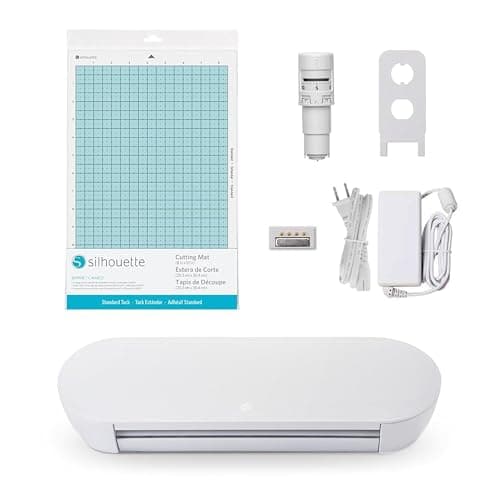
5. Best for the cheapest way into silhouette
Silhouette Portrait 4
Silhouette · Currently sold · Verified 2026-09-27
The entry point if the offline-software argument has won you over but a CAMEO is more machine than you need. It runs the same Studio software and the same print-and-cut workflow at a lower price and a smaller footprint. The constraint is the 8 inch cut width, which is narrower than a letter-size sheet is wide once registration marks are accounted for, so it suits smaller sticker sheets rather than full-page ganged layouts. Same Studio learning curve, and the same paid upgrade for SVG import.
What works
- Cheapest route into the Silhouette ecosystem
- Offline software with no subscription requirement
- Small footprint for a machine that still cuts 8 in wide
What does not
- 8 in width limits large shirt designs
- Same Studio learning curve as the CAMEO
- Fewer beginner tutorials than the equivalent Cricut
Not for you if
You need 12 in wide cuts. The CAMEO 5 is the Silhouette that does that.
Key specs
- Max cut width
- 8 in
- Software
- Silhouette Studio — local, offline capable
- Matless cutting
- Yes, with Silhouette's roll feeder materials
- Footprint
- Compact
- Tool system
- Auto blade
Price as of November 12, 2026
#ad · affiliate link · we never show a price we cannot verify
Software is the real brand decision
For stickers specifically, the cutting hardware is close to a draw. Both brands cut printable vinyl cleanly with a standard blade, and once registration has succeeded the cut quality is not where you will notice a difference. What you will notice every single session is the software.
Design Space is friendlier, is the subject of nearly every beginner tutorial on the internet, and handles SVG files without an upsell. It also needs an internet connection, and Cricut's subscription sits in the interface permanently. Silhouette Studio is local, offline-capable, and does not require a subscription to cut — but SVG import on the basic edition needs a paid upgrade, and the interface assumes more of you. Cricut vs Silhouette is the full version of that argument, and is Cricut Access worth it covers the subscription question honestly.
Which machines to avoid for stickers
- The Cricut Joy 2. It has no print-then-cut at all. It is an excellent small-decal machine and a bad sticker machine, and that is a hard limitation rather than a software gap.
- The Portrait 4 for full-page sheets. An 8 inch cut width is narrower than a letter sheet, so ganged full-page layouts do not fit. Smaller sheets are fine.
- A Maker bought for sticker capability. It print-then-cuts identically to an Explore. Buy it for fabric, leather or wood, not for stickers.
- Any machine paired with a laser printer. Sublimation aside, the practical issue is that print-and-cut workflows assume inkjet-printable adhesive stock; laser-printable sticker material exists but is a narrower, more expensive market.
If you have already settled on Cricut and only want to know which model, the best Cricut for making stickers is the model-by-model version of this page.
The material matters more than the brand
A sticker that peels, fades or runs is almost never the machine's fault. Ordinary paper-based inkjet sticker sheets are not waterproof and will smear if they get damp; printable vinyl with a waterproof coating holds up to handling and a water bottle. Laminating over the top adds scratch and UV resistance and makes the sticker feel like a product rather than a printout.
Matte stock is also the more forgiving choice for registration on both brands, because gloss reflects light back at the sensor. If you want gloss stickers, laminate matte stock with a gloss sheet after cutting rather than printing on gloss and fighting the scan.
Everything else is shared between the brands: a sharp fine-point blade, a clean mat with real grip, and a kiss-cut depth setting that goes through the vinyl but not the backing. The blade guide and the best clear sticker paper for a Cricut cover both.
For the wider brand-neutral view including Brother and the material side of the job, the best cutting machine for stickers ranks every machine with print-then-cut and explains what printable vinyl buys you over sticker paper.
Common questions
Is Cricut or Silhouette better for making stickers?
How big can a Cricut print-then-cut sticker sheet be?
Why does my print-and-cut registration keep failing?
Can a Cricut Joy make printed stickers?
Do I need the Maker instead of the Explore for stickers?
What sticker paper should I use?
Sources
- Cricut — Print Then Cut help documentation — Print Then Cut registration border, maximum design size relative to paper size, supported paper sizes including letter, legal and tabloid, and lighting requirements for the scan — checked 8 October 2026
- Silhouette America — Silhouette Studio — Print & Cut registration mark workflow, local offline software, and the Studio edition tier that unlocks SVG import — checked 8 October 2026
- Silhouette School — registration mark types — Three-mark registration layout on the long-standing system and the newer four-point system on recent hardware, checked 8 October 2026
How we picked
We verify every product is currently sold by reading the manufacturer's own catalog, compare published specifications rather than marketing copy, and rank on what a first-time buyer has to decide. We do not run lab tests and we do not claim to, and commission never affects the order.
Read this next
Cricut vs Silhouette
The brand decision settled fairly: ecosystem and ease against offline software and no subscriptions.
The Best Cricut for Making Stickers
Which machines can make printed stickers, which cannot, and the material that decides whether they survive.
The Best Clear Sticker Paper for a Cricut
Why clear sticker material fights Print Then Cut, what to buy instead, and when transparent is genuinely the right call.
Cricut vs Silhouette vs Brother
What each of the three main cutting machine brands is actually good at, and which one fits how you want to work.
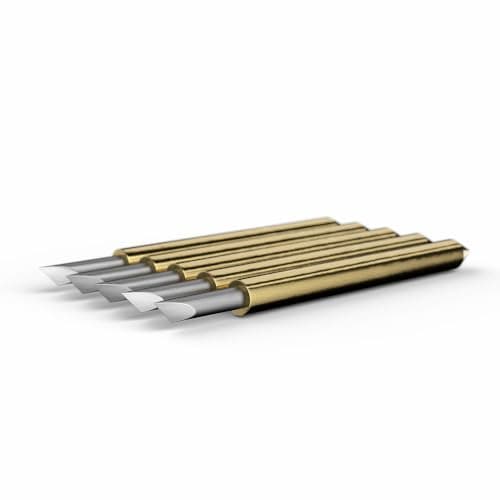
Cricut Blade Guide
Which blade cuts what, when to replace, and why a dull blade masquerades as a broken machine.
Best Craft Cutting Machines for Beginners
Every brand worth considering, ranked honestly — including the cases where Cricut is not the answer.
Back to Cutting Machines.