Is a Cricut Easy to Use?
Yes for the machine, no for the first evening. The hard parts are not where beginners expect them, which is why so many machines end up in cupboards.
Heads up: Mat & Blade earns a commission from qualifying purchases made through the links on this page, at no extra cost to you. It never changes which products we recommend or how we rank them. Read the full disclosure.
The machine is easy; the first evening is not. Loading material and pressing Go takes minutes to learn, and most people get a clean cut on their first try. What catches beginners out is everything around the cut: the software, picking the right material setting, weeding the waste vinyl out of a design, and applying it without bubbles. Expect a few hours of real learning and two or three wasted pieces of vinyl — not a weekend, and not a month.
What is genuinely easy
- Loading and cutting. Material on the mat, mat into the machine, press the arrow. There is very little to get wrong.
- Material settings. Design Space has named presets — pick "Premium Vinyl" rather than guessing a pressure. This is the single biggest usability advantage of the Cricut platform.
- Ready-made projects. Open a project, click Make It, follow the prompts. You can produce something real before you understand anything.
- Matless cutting. With Smart Materials there is no mat step at all on supported machines, which removes the fiddliest part of setup.
- Setup. Bluetooth or USB, an account, a firmware update. Half an hour at worst.
What is genuinely hard
1. Design Space, if you want your own designs
Opening someone else's project is easy. Building your own means learning Attach, Weld, Slice, Flatten and Contour, and those five commands are not intuitive — Attach in particular behaves differently from the grouping tool in every other design program. This is where most of the real learning time goes. Cricut Design Space basics is the shortest route through it, and when Design Space is not working covers the other common source of early frustration.
2. Weeding
Removing the waste vinyl from inside letters and counters is slow, fiddly and genuinely annoying the first few times. It gets much easier with a weeding hook and good tweezers, with a design that avoids thin strokes, and with vinyl that weeds cleanly. How to weed vinyl is the technique, and the best weeding tools for vinyl is the kit.
3. Application
Getting a decal onto a surface straight and without bubbles is a hand skill. So is pressing heat transfer vinyl at the right temperature for the right time with real pressure — which is where a household iron fails, because it does not hold a temperature. If the first shirt peels in the wash, the press is usually the reason. How to use HTV and the heat press temperature guide are the two pages that fix it.
4. Knowing which material to buy
The vocabulary is the barrier, not the difficulty. Adhesive vinyl goes on hard surfaces; heat transfer vinyl goes on fabric; permanent and removable are different adhesives for different jobs; transfer tape moves a decal and is not the same as HTV's own carrier. HTV versus adhesive vinyl untangles the main one in two minutes.
What makes it harder than it needs to be
| Mistake | What happens | Fix |
|---|---|---|
| First design has thin script strokes | Weeding takes an hour and tears | Start with bold, chunky shapes |
| No weeding tools | Fingernails, torn vinyl, frustration | A basic weeding set |
| Material not rolled flat onto the mat | It lifts mid-cut, the design tears | A brayer or firm hand pressure |
| Household iron instead of a press | The design peels in the first wash | A press that holds a set temperature |
| Cheap unbranded vinyl first | Poor weeding, unclear settings, blamed on the machine | A known HTV for the first few projects |
| Starting with a complex multi-layer design | Alignment problems on top of everything else | One color, one layer, first |
1. Best for the easiest machine to learn on at full size
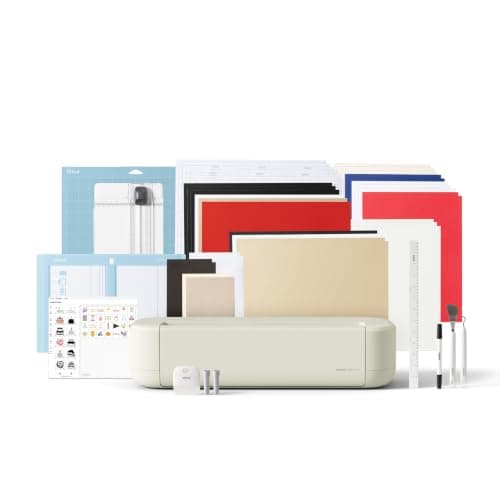
Cricut Explore 5
Cricut · Currently sold · Verified 2026-09-27
Ease of use mostly comes down to not fighting the machine, and a 12 inch machine with two tool slots and matless cutting via Smart Materials removes most of the fights. It cuts the beginner materials — vinyl, heat transfer vinyl, cardstock, paper, iron-on — with named presets in Design Space, so your first job is choosing a material from a list rather than guessing a blade depth. That one design decision is why beginners get a working result on day one.
What works
- Cuts every material a beginner's first ten projects will use
- Matless Smart Material cutting means long banners and decals without a mat
- Cheapest current machine that still handles full 12 in wide vinyl
- Huge community of tutorials aimed at exactly this machine
What does not
- No rotary blade, so unbacked fabric is out
- No knife blade for basswood or thick leather
- Still needs Design Space, which needs an internet connection to set up
Not for you if
You already know you want to cut quilting fabric or thick leather. That is the Maker line's rotary and knife blades, and no accessory adds them to an Explore.
Key specs
- Cuts
- Vinyl, heat transfer vinyl, cardstock, paper, iron-on, faux leather
- Max material width
- 12 in (11.5 in cut width)
- Matless cutting
- Yes, with Smart Materials
- Tool slots
- Two — blade plus pen or scoring tool
- Rotary / knife blade
- No — Maker line only
Price as of November 12, 2026
#ad · affiliate link · we never show a price we cannot verify
2. Best for the lowest-stress way to try the hobby
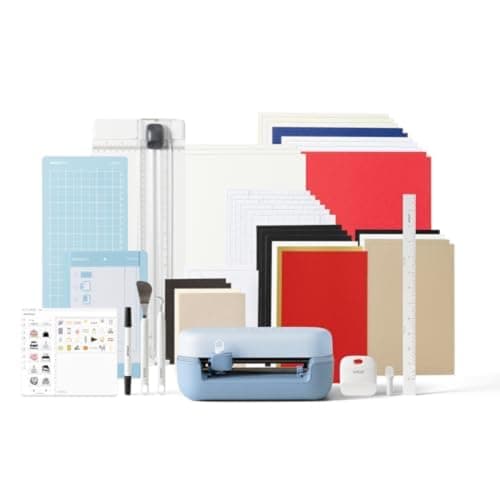
Cricut Joy 2
Cricut · Currently sold · Verified 2026-09-27
A 4.5 inch cut width is a limitation, and for a nervous beginner it is also a kindness. Smaller cuts mean cheaper mistakes, faster jobs and less material wasted while you learn what a good cut looks like. It cuts matless with Smart Materials, stores in a drawer, and handles vinyl, heat transfer vinyl, cardstock, paper and Smart Label material. Understand before you buy that adult shirt designs are off the table at this width.
What works
- The lowest cost of entry in the current Cricut line
- Genuinely portable and storable, which matters if you have no dedicated craft space
- Long matless cuts make it excellent for labels and long decals
- Simple enough that the learning curve is close to flat
What does not
- 4.5 in cut width is the hard limit — most adult shirt designs will not fit
- No print-then-cut, so printed stickers are out
- Takes the narrow Joy-format materials, which are less widely stocked
Not for you if
You want to make shirts. A 4.5 in design reads as a small chest logo, not a front print, and there is no workaround.
Key specs
- Cuts
- Vinyl, heat transfer vinyl, cardstock, paper, Smart Label material
- Max cut width
- 4.5 in
- Max cut length
- Up to 20 ft with Smart Materials
- Footprint
- Small enough to store in a drawer
- Mat required
- Optional — cuts matless with Smart Materials
Price as of November 12, 2026
#ad · affiliate link · we never show a price we cannot verify
3. Best for the step everyone underestimates
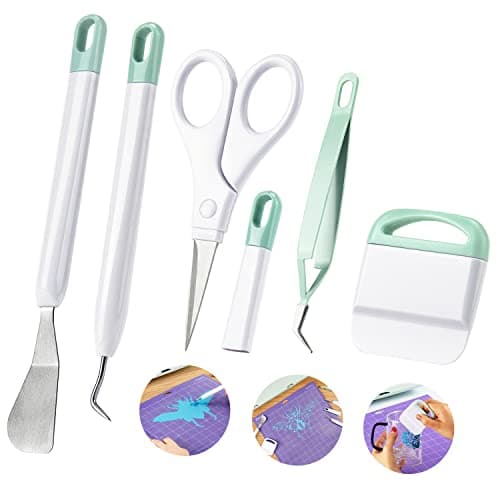
Ecraft Vinyl Weeding Tool Set
ecraft · Currently sold · Verified 2026-09-27
Weeding — picking the waste vinyl out of a cut design — is where the first evening actually goes wrong, and fingernails are not the tool for it. A set with a weeding hook, fine tweezers, a scraper and a spatula turns a frustrating twenty minutes into a calm five. It is the cheapest purchase on this page and the one that changes the experience most. Nothing in a set like this is brand-specific, so it works with any machine.
What works
- Turns the most tedious step into a manageable one
- The scraper doubles as your transfer-tape burnishing tool
- Cheap, and a set lasts years
What does not
- Cheap sets have soft points that dull quickly
- More pieces than you will actually use
Not for you if
Nothing — if you cut vinyl, you need at least a hook.
Key specs
- Typical set
- Weeding hook, fine tweezers, scraper, spatula, scissors
- Used for
- Removing the vinyl you did not cut out of the design
- Also fits
- Every brand of machine — nothing here is Cricut-specific
Price as of November 12, 2026
#ad · affiliate link · we never show a price we cannot verify
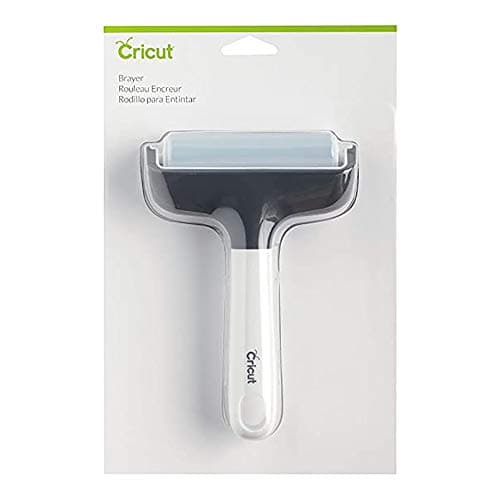
4. Best for stopping the most common beginner failure
Cricut Brayer
Cricut · Currently sold · Verified 2026-09-27
A huge share of ruined first cuts are material lifting off the mat mid-cut, which shows up as a torn design and gets blamed on the blade. A hand roller presses material flat onto the mat so it cannot lift. It also burnishes transfer tape onto a decal, which is the other place beginners lose a design. Small, cheap, and it removes a whole category of problem.
What works
- Fixes lifted-corner cutting failures before they happen
- Doubles as a burnishing tool for transfer tape
- Very cheap
What does not
- A scraper does most of the same job
- One more tool to lose
Not for you if
You cut only matless Smart Materials. There is no mat to roll onto.
Key specs
- Purpose
- Rolls material flat onto the mat so it cannot lift mid-cut
- Also useful for
- Burnishing transfer tape onto a decal
- Size
- Small hand roller, usually rubber
Price as of November 12, 2026
#ad · affiliate link · we never show a price we cannot verify
Is it hard to use for older or less technical users?
The physical operation is genuinely simple — load, press a button — and the machine does not demand strength or fine motor control. The barrier is that Design Space is a cloud app that needs an account, a device and an internet connection, and that is where non-technical users struggle rather than at the machine. If that describes the person using it, the Brother ScanNCut is worth knowing about: it has an on-machine touchscreen and can scan and cut without a computer at all.
The other honest point: ease of use is not the same as value. A machine that is easy to use and never gets used is still a cupboard ornament. Is a Cricut worth it is the more useful question to answer before buying, and is a Cricut a printer clears up the expectation that disappoints people most often.
Common questions
Is a Cricut easy to use for beginners?
How long does it take to learn a Cricut?
Is Cricut Design Space hard to learn?
What is the hardest part of using a Cricut?
Can you use a Cricut without a computer?
Why does my first Cricut project look bad?
Sources
- Google Autocomplete — 'is a cricut' — 'is a cricut easy to use' and 'is a cricut hard to use' both returned as live completions - checked 17 October 2026
- Cricut Design Space — Attach, Weld, Slice and Flatten documentation — Manufacturer documentation for the editing commands beginners have to learn - checked 17 October 2026
How we picked
We verify every product is currently sold by reading the manufacturer's own catalog, compare published specifications rather than marketing copy, and rank on what a first-time buyer has to decide. We do not run lab tests and we do not claim to, and commission never affects the order.
Read this next
Is a Cricut Worth It?
The honest case for and against, including the reader who should not buy one at all.
Cricut Design Space Basics
The six Design Space functions that cover almost everything, and what each one actually does.
How to Weed Vinyl
Technique, tools and the reverse-weed trick that makes fine script designs manageable.
The Best Weeding Tools for Vinyl
The three tools that do the work, the ones you can skip, and the setting change that makes weeding easy.
Is a Cricut a Printer?
A plain answer to the most common pre-purchase misunderstanding in this category — what a Cricut does instead of printing, and what you need if you want ink.
What You Need to Start
The genuine beginner checklist — what you need for a first project and what can wait.
Back to Cutting Machines.