
Cricut Design Space Basics
Six functions cover almost everything a beginner does. The rest can wait indefinitely.
Heads up: Mat & Blade earns a commission from qualifying purchases made through the links on this page, at no extra cost to you. It never changes which products we recommend or how we rank them. Read the full disclosure.
Six functions cover almost everything: Upload, Weld, Attach, Slice, Flatten and Offset. Design Space has far more than that, and a beginner can ignore the rest indefinitely. Knowing what these six do — and which two get confused with each other — removes most early frustration.
The six
Upload
Brings your own files in. SVG files come in as editable cut paths straight away, which is why most design files are sold as SVGs. PNG and JPG files need tracing — Design Space asks you to remove the background, which works well on simple high-contrast images and poorly on photographs.
Upload works without a subscription. You can upload and cut your own files indefinitely without paying anything.
Weld
Permanently merges overlapping shapes into one. The classic use is script text: cursive letters overlap, and without welding the machine cuts each letter separately, leaving cut lines through the joins.
Weld is permanent. Once welded, the individual pieces cannot be separated again — so do the work first and weld last, or duplicate the design before welding so you keep an editable copy.
Attach
Holds pieces in position relative to each other without merging them. This is the one people confuse with Weld, and the difference matters.
By default Design Space rearranges everything on the mat to save material, so a carefully arranged design gets scattered. Attach says "keep these exactly as I placed them". It is also how you tell the machine to draw with a pen on a shape rather than cutting it out separately. Unlike Weld, Attach is reversible.
| Weld | Attach | |
|---|---|---|
| What it does | Merges into one shape | Keeps arrangement, stays separate |
| Reversible | No | Yes |
| Use for | Overlapping script letters | Preserving layout; pen-draw on a shape |
| Cut lines at joins | Removed | Kept |
Slice
Cuts one shape out of another, using exactly two shapes at a time. Use it to knock text out of a rectangle, cut a circle out of a square, or trim a design to a shape. If it is grayed out, you have selected more or fewer than two objects.
Flatten
Turns a layered design into a single printable image for print-then-cut. This is the function that print-then-cut projects live or die by: without flattening, Design Space treats each layer as a separate cut rather than as artwork to print and cut around.
If you are making printed stickers and the machine is trying to cut your design into pieces, Flatten is what you missed. More on printed stickers.
Offset
Adds an outline around a shape at a distance you set. Useful for putting a border around text, creating a backing layer for a two-color design, or giving a sticker a white edge so a slightly imperfect cut does not look ragged.
The settings that matter before you cut
- Material setting. Choose the named material. It applies a known pressure and blade depth, which is why presets are worth using instead of a custom value you guessed.
- Mirror, for heat transfer vinyl only. Design Space prompts you when you pick an iron-on material. Do not dismiss it. Why.
- Size. Check the actual dimensions against the item you are decorating. Something that looks right on screen is frequently too big or too small in reality.
- Load position. Place the design near the top-left of the mat so it uses the material consistently, and vary the spot over time so mat wear spreads out.
The subscription question
Design Space repeatedly offers Cricut Access, and it is worth being clear: the machine works completely without it. You can upload your own files, use your own fonts, and cut indefinitely without paying a monthly fee.
Access buys a design library, a set of licensed fonts and some editing conveniences. Whether that is worth it depends entirely on whether you want to design or to browse. The honest assessment.
Common frustrations
| Problem | Cause |
|---|---|
| Script letters have cut lines between them | Not welded |
| Layout got rearranged on the mat | Not attached |
| Slice is grayed out | More or fewer than two objects selected |
| Print-then-cut is cutting my layers apart | Not flattened |
| Design came out mirrored on a decal | Mirror was on — that is for HTV only |
| Design came out backwards on a shirt | Mirror was off — HTV must be mirrored |
| Uploaded image traced badly | Photographs trace poorly; use simple high-contrast images or an SVG |
1. Best for the machine this drives
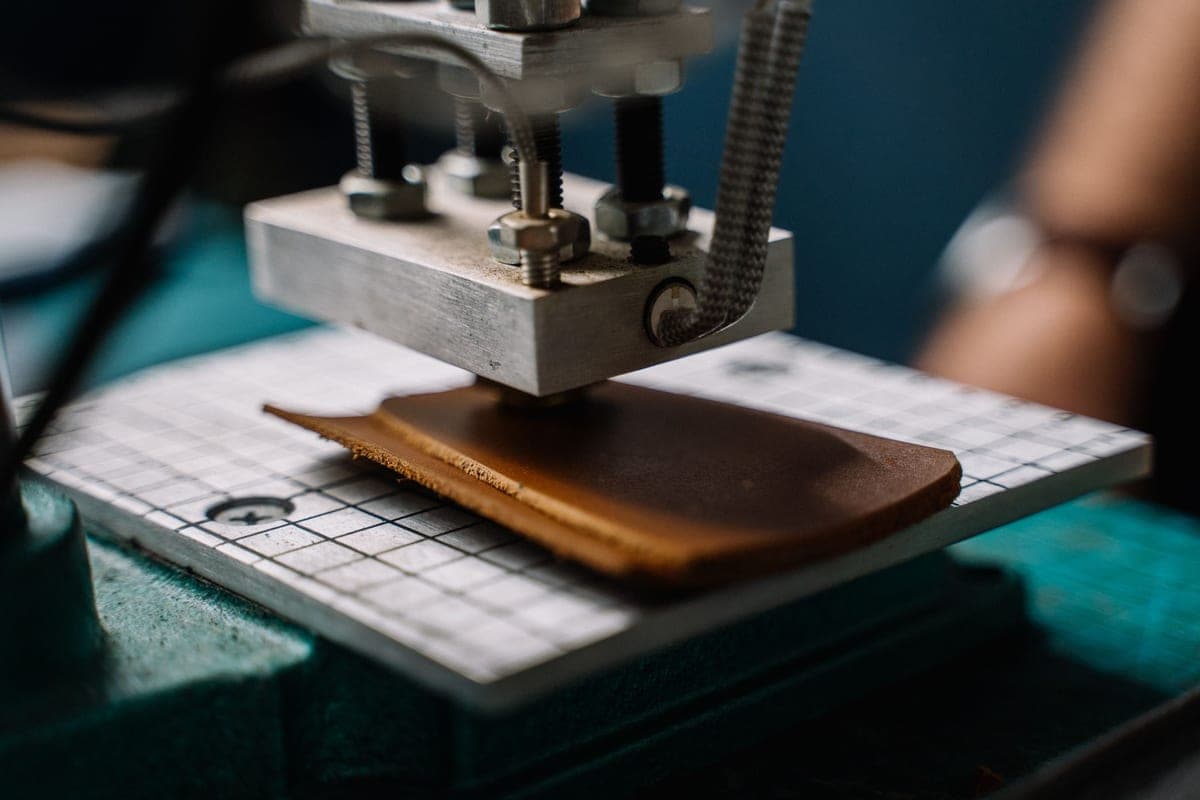
Cricut Explore 5
Cricut · Currently sold · Verified 2026-09-27
Design Space is the software for every current Cricut, so everything here applies regardless of which model you own. The Explore 5 is where most beginners land.
What works
- Cuts every material a beginner's first ten projects will use
- Matless Smart Material cutting means long banners and decals without a mat
- Cheapest current machine that still handles full 12 in wide vinyl
- Huge community of tutorials aimed at exactly this machine
What does not
- No rotary blade, so unbacked fabric is out
- No knife blade for basswood or thick leather
- Still needs Design Space, which needs an internet connection to set up
Not for you if
You already know you want to cut quilting fabric or thick leather. That is the Maker line's rotary and knife blades, and no accessory adds them to an Explore.
Key specs
- Cuts
- Vinyl, heat transfer vinyl, cardstock, paper, iron-on, faux leather
- Max material width
- 12 in (11.5 in cut width)
- Matless cutting
- Yes, with Smart Materials
- Tool slots
- Two — blade plus pen or scoring tool
- Rotary / knife blade
- No — Maker line only
#ad · affiliate link · we never show a price we cannot verify
2. Best for where flatten matters
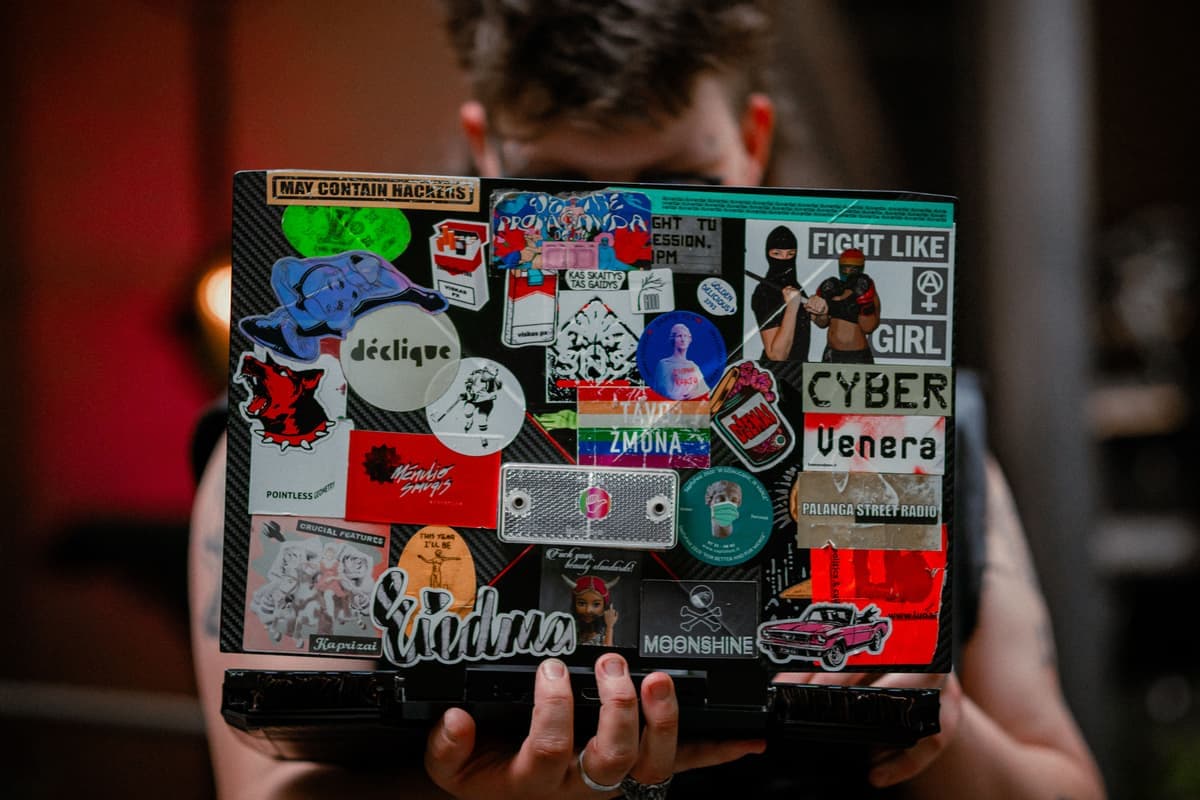
Printable Sticker Paper
Various · Currently sold · Verified 2026-09-27
Print-then-cut projects are the one place a beginner has to understand a specific Design Space function — Flatten — or nothing works. Printable vinyl is the material for it.
What works
- The only way to make full-color stickers on a craft machine
- Waterproof printable vinyl holds up to real use
- Cheap per sheet once you gang designs up
What does not
- Paper-based sticker sheets run when wet unless sealed
- Print-then-cut registration needs decent lighting to scan reliably
- The Joy 2 cannot do print-then-cut at all
Not for you if
Your machine has no print-then-cut. Cut solid-color vinyl decals instead.
Key specs
- Type
- Printable adhesive sheets for an inkjet printer
- Requires
- A machine with print-then-cut — not every model has it
- Waterproof versions
- Printable vinyl rather than paper; survive handling
- Finish
- Matte and gloss
#ad · affiliate link · we never show a price we cannot verify
3. Best for where mirror matters
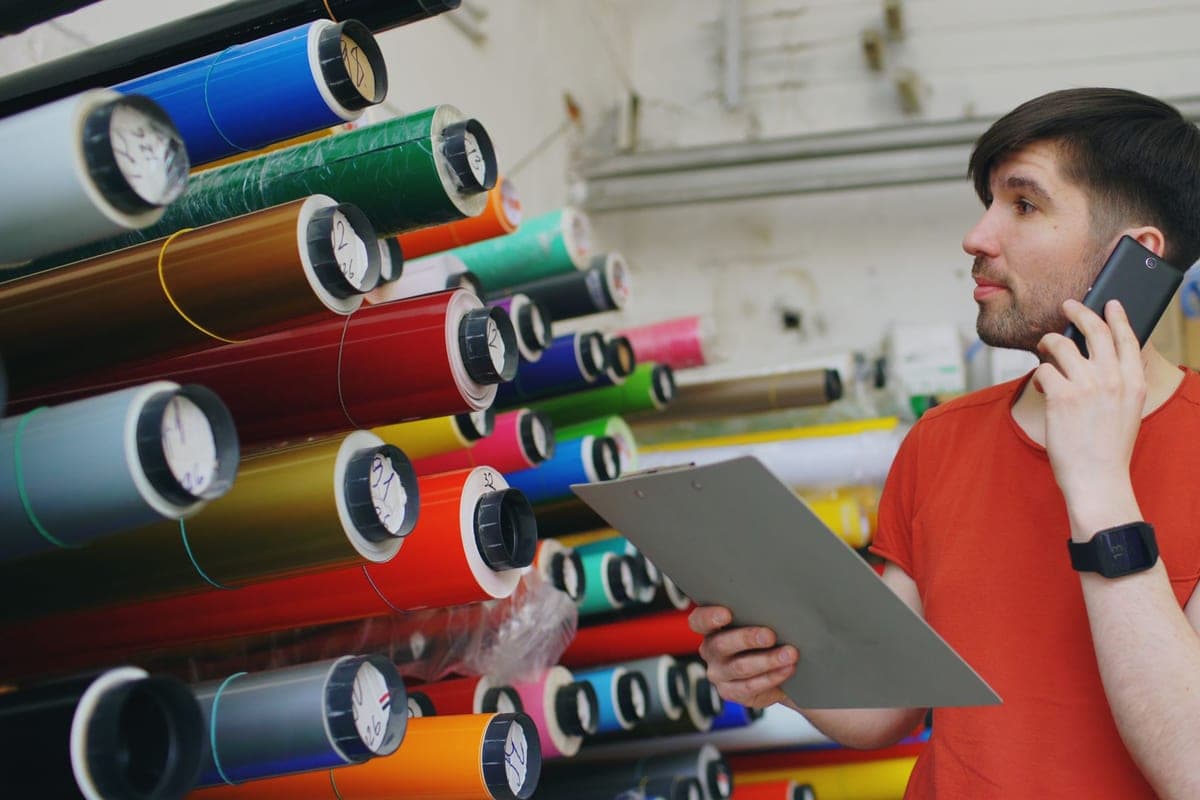
Siser EasyWeed HTV
Siser · Currently sold · Verified 2026-09-27
The software's mirror prompt exists for heat transfer vinyl, and dismissing it is the most common first-shirt mistake. If you are cutting this, the prompt is not optional.
What works
- Weeds more cleanly than almost anything else at this price
- Thin enough that a layered design does not feel like a plastic patch
- Siser publishes clear time and temperature guidance for it
- Sold in single sheets, so you can try three colors without buying three rolls
What does not
- Matte only — no gloss, glitter or specialty finish in the base line
- Sheets cost more per square inch than buying a roll
- Still needs real heat and pressure; a household iron gives mixed results
Not for you if
You want a glitter or holographic finish. That is a different Siser product line, not EasyWeed.
Key specs
- Type
- Heat transfer vinyl (HTV) — for fabric
- Fabric compatibility
- Siser rates it for cotton, polyester and cotton/poly blends
- Thickness
- Thin — around 90 microns
- Carrier
- Pressure-sensitive clear carrier sheet
- Finish
- Matte
#ad · affiliate link · we never show a price we cannot verify
Common questions
What is the difference between Weld and Attach in Design Space?
Why does my script text have cut lines between the letters?
What does Flatten do in Design Space?
Do I need a subscription to use Design Space?
Can I upload my own designs to Design Space?
Sources
- Cricut Design Space documentation — Function behavior, file format support and material settings, verified 27 September 2026
How we picked
We verify every product is currently sold by reading the manufacturer's own catalog, compare published specifications rather than marketing copy, and rank on what a first-time buyer has to decide. We do not run lab tests and we do not claim to, and commission never affects the order.
Read this next
Is Cricut Access Worth It?
What the subscription includes, who benefits, and how to use a Cricut perfectly well without it.
Your First Cricut Shirt
A complete first-shirt walkthrough, with the three common mistakes flagged before you make them.
The Best Cricut for Making Stickers
Which machines can make printed stickers, which cannot, and the material that decides whether they survive.
What You Need to Start
The genuine beginner checklist — what you need for a first project and what can wait.
Your First Vinyl Decal
The cheapest first project — a complete decal walkthrough with no heat source required.
Back to Start Here.